

How to add or remove users from a Reduct workspace
Adding a user to a workspace
-
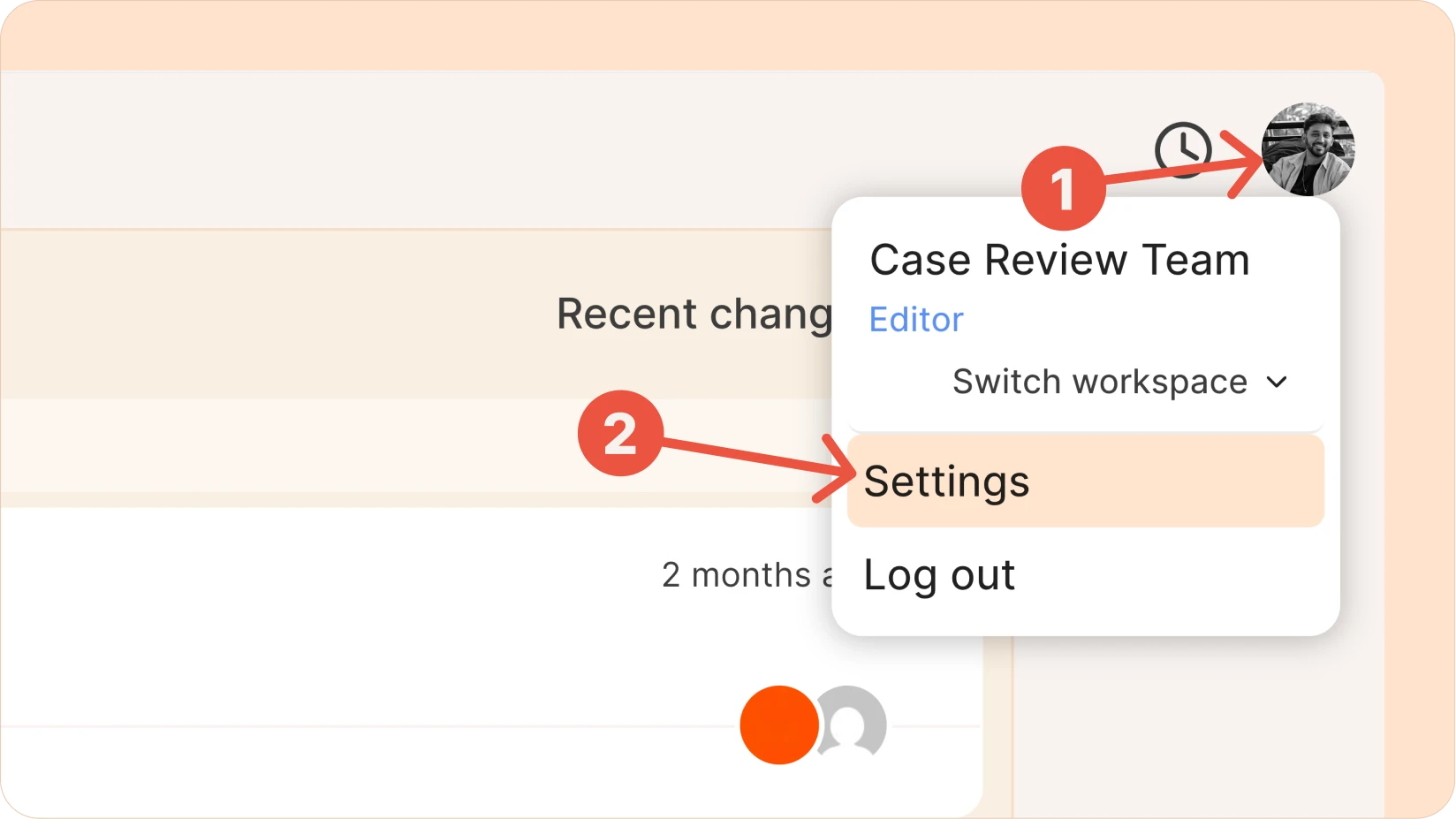
Click your profile icon in the top-right corner.
-
Select Settings from the dropdown.
-
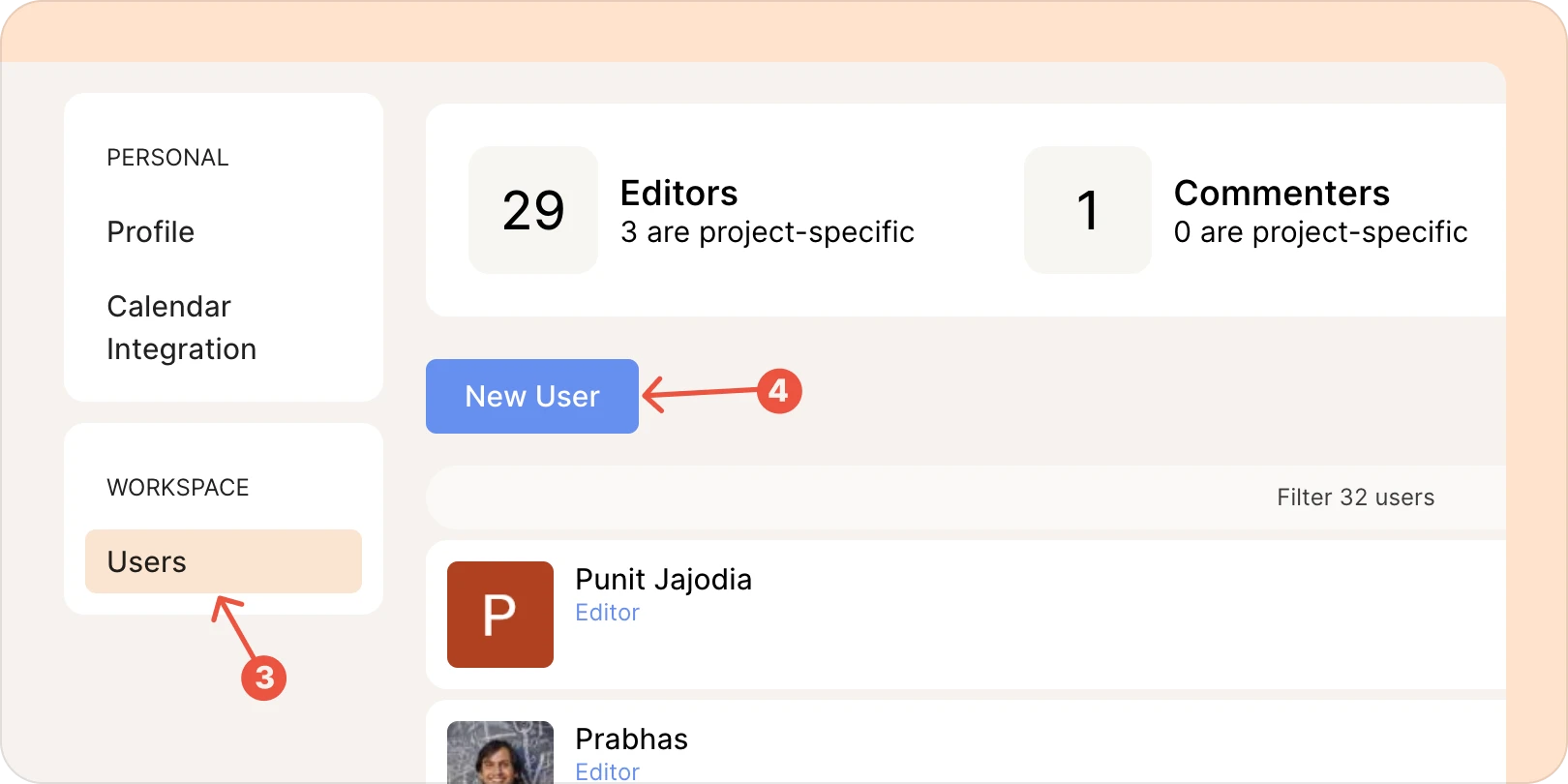
In the sidebar, click Users.
-
Click New User.
-
Enter the email address. You can enter as many email addresses as you like, separating them with commas.
-
Choose their Workspace Role.
-
Then, click Invite.
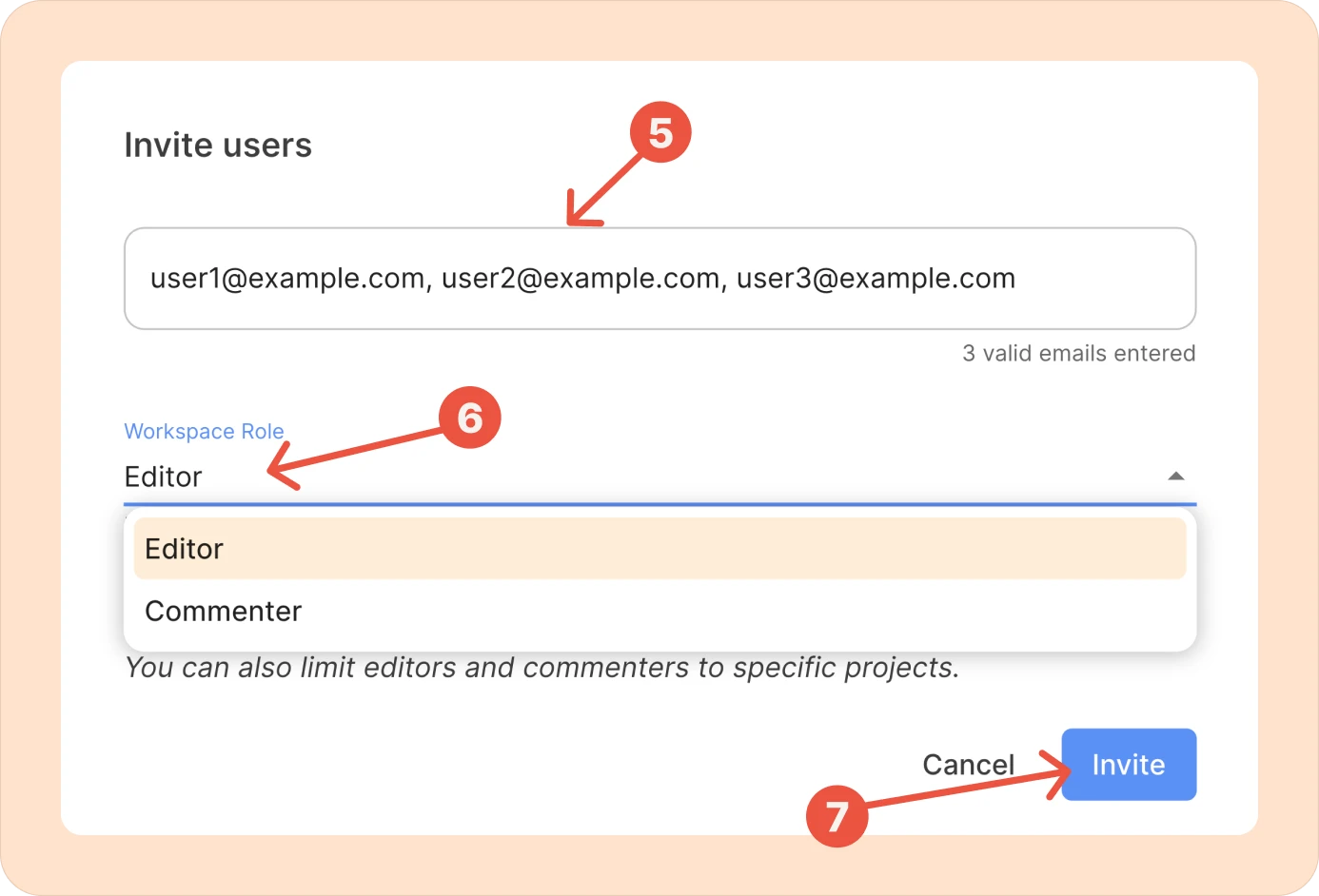
All the invited users will receive an email from Reduct with instructions to join the workspace.
Workspace Role (Quick overview)
-
Editor (Paid seat)
-
Access to all projects in your workspace (except unlisted)
-
Create new projects and upload recordings
-
Can invite users to the workspace and projects.
-
-
Commenter (Free seat)
-
View and search recording transcripts, videoboards, highlights, and reels
-
Create highlights and comments
-
Here’s a detailed breakdown of all the roles and permissions in Reduct.
Removing a user from a workspace
-
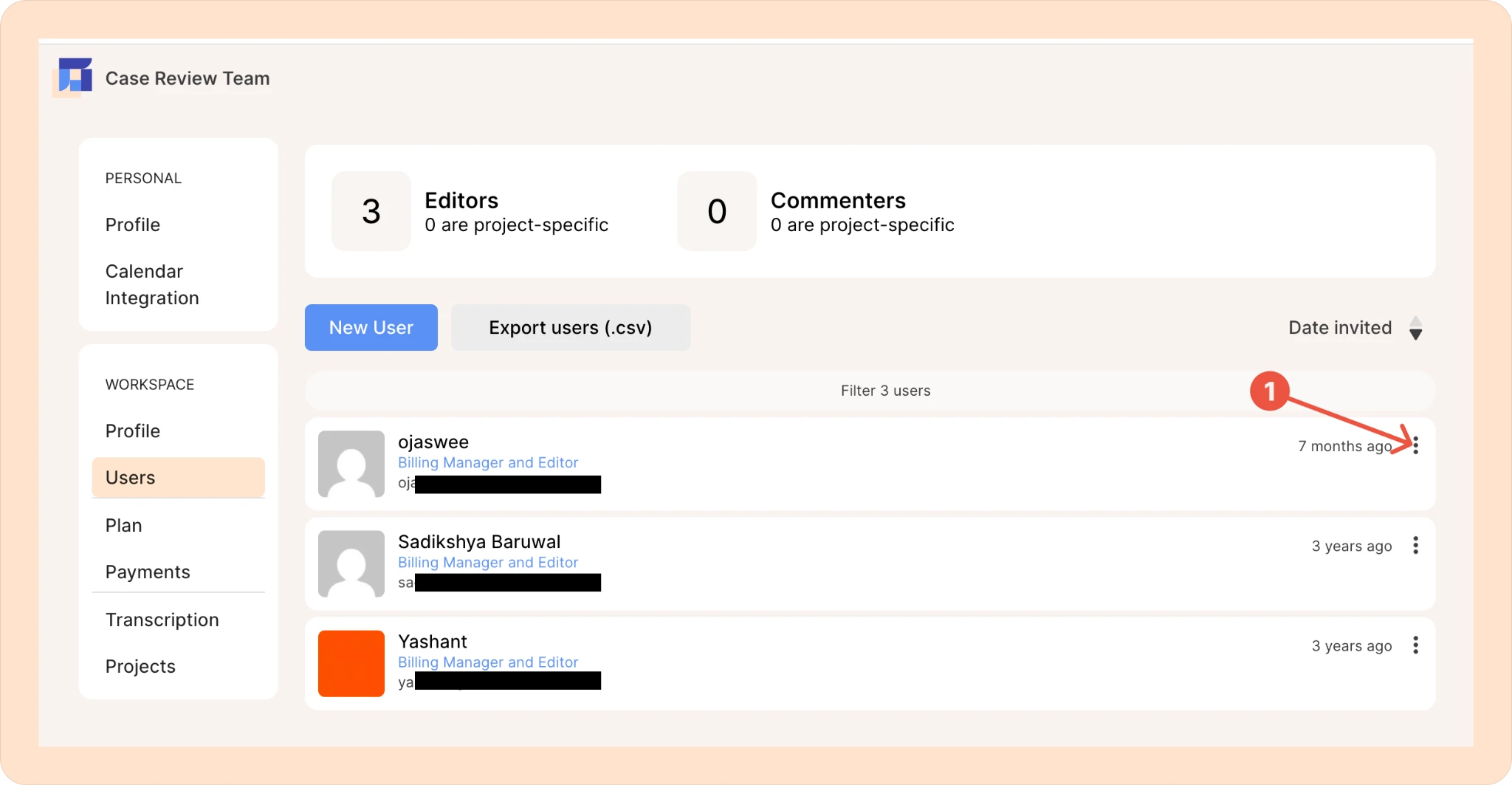
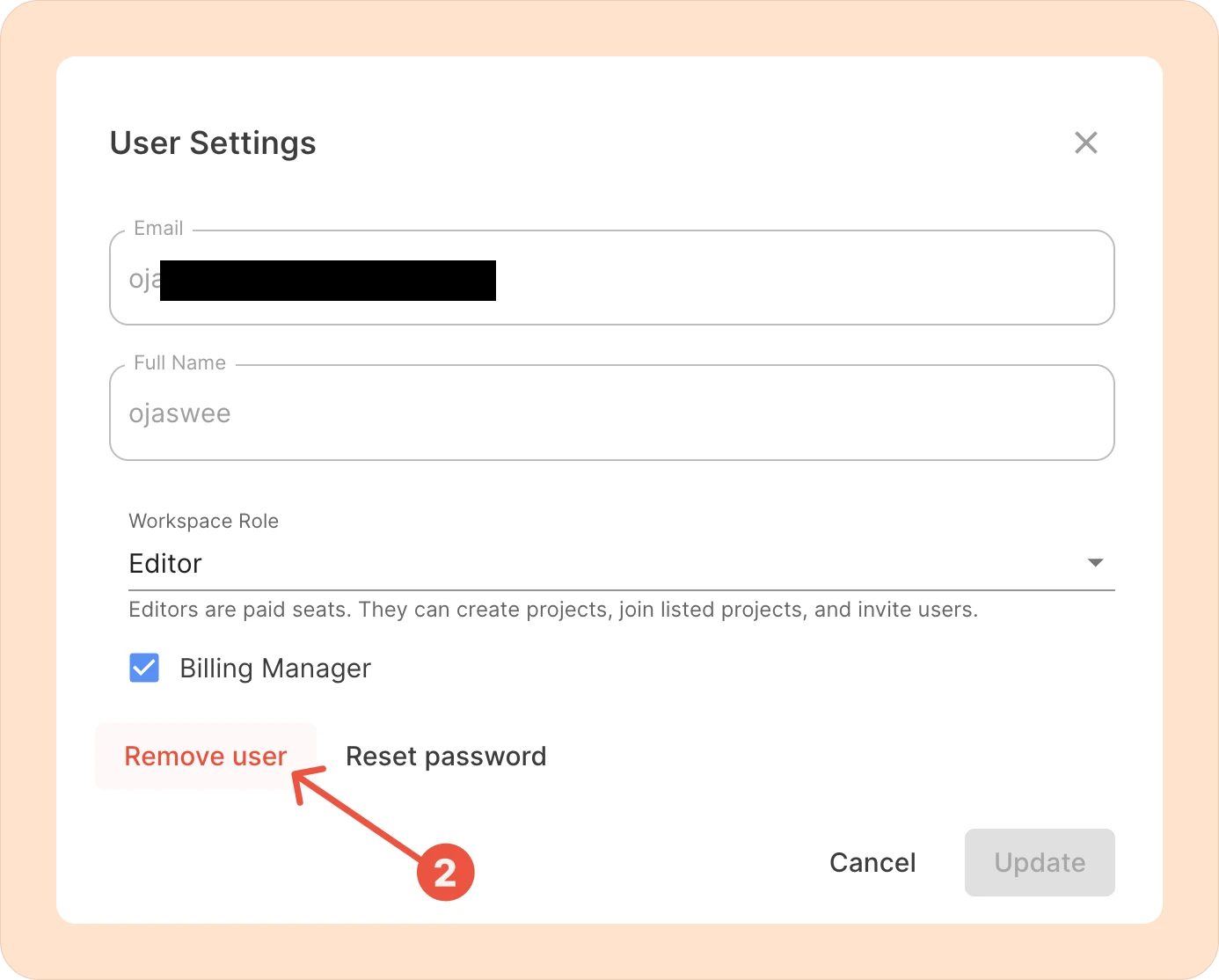
In the user settings page, click the three-dot kebab menu (︙) next to the user you'd like to remove from the workspace.
-
Click the Remove option next to their name.
-
Confirm the removal.

Once removed, the user will no longer have access to the workspace or its projects.
Notes
-
Removing a user does not delete projects or recordings they worked on.
-
You can re-invite a user at any time by adding them again.