

Keyboard shortcuts
You can use keyboard shortcuts to quickly review, highlight, and label transcripts, and to edit reels even more quickly.
You will find a lot of shortcuts besides the action button in the interface itself. You can learn to use these shortcuts as you get more familiar with Reduct.
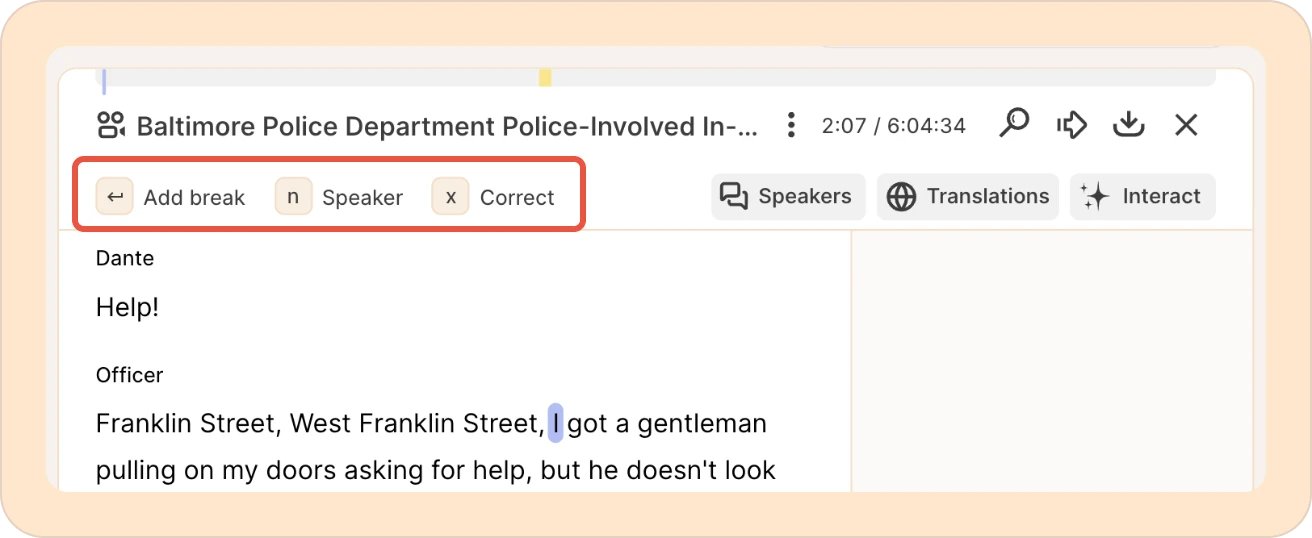
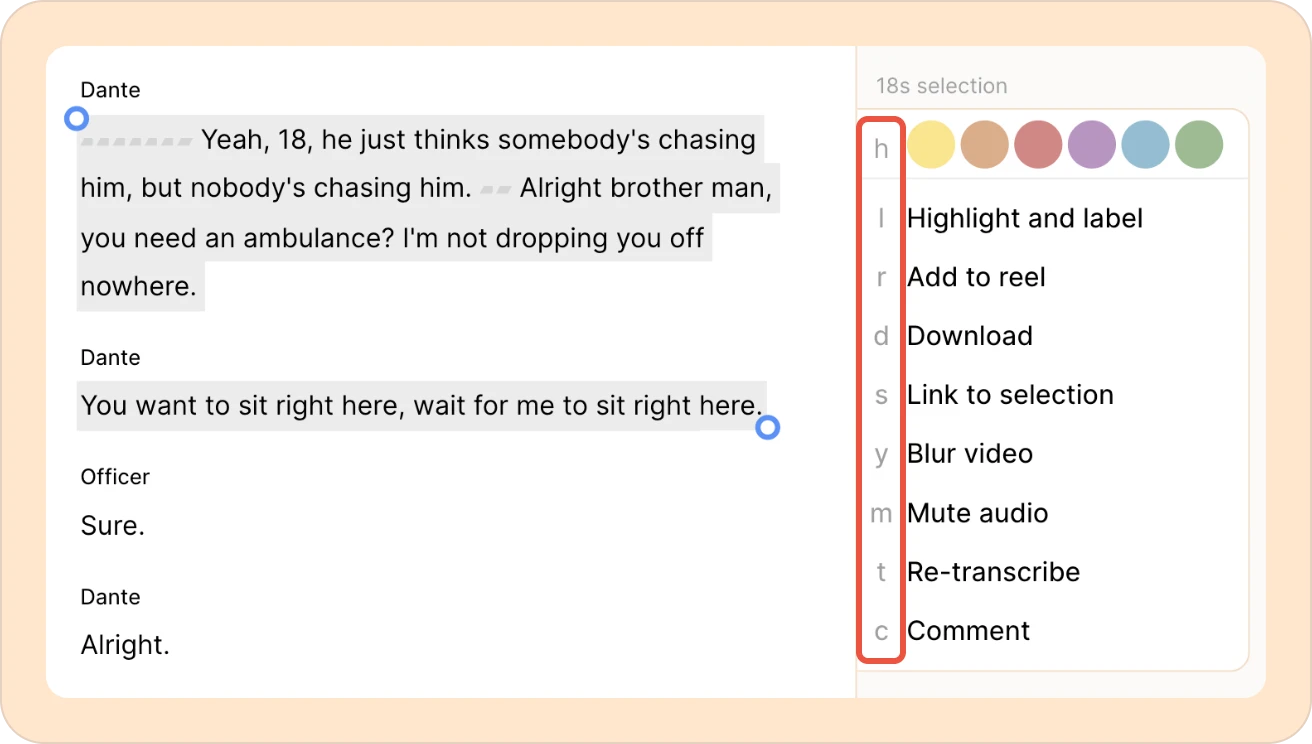
There are some shortcuts that are not documented in the UI. Here’s a list of all the shortcuts in Reduct.
Video playback - global shortcut
| SPACE | Play / pause |
| , / . | Previous / next frame (while paused) |
| , / . | Slow down / speed up (while playing) |
Within recording & reel transcripts use
| → / ← | Previous / next word |
| ↑ / ↓ | Previous / next sentence |
| OPTION + → ← | Skip forward or back a full paragraph at a time |
| OPTION + ↑ ↓ | Previous / next paragraph |
| SHIFT + ← / → / ↑ / ↓ | Select text in the transcript |
| ENTER | Add paragraph break |
| ESC | Remove paragraph break |
When transcript text is selected
| SHIFT + ← / → / ↑ / ↓ | Select or deselect text, grow or shrink a selection |
| COMMAND ⌘ + c | Copy text from a transcript |
| h | Highlight |
| l | Highlight and label |
| r | Add to reel |
| d | Download |
| s | Link to selection |
| y | Blur video |
| m | Mute audio |
| t | Re-transcribe |
| c | Comment |
| ESC | Deselect text from the transcript |
Within reels only
| BACKSPACE | Cut word/selection |
| [ | Split before |
| ] | Split after |
| = | Split both sides |
| x | Correct the transcript in the source recording |
| j / k | Next / previous item |
| y | Video redaction |
| m | Audio redaction |
| s | Link to selection |