

How to batch export transcripts in a project?
Note:
This functionality is not available for all customers. If you would be interested in access to this functionality, please submit a support ticket.
To batch export transcripts from a project,
-
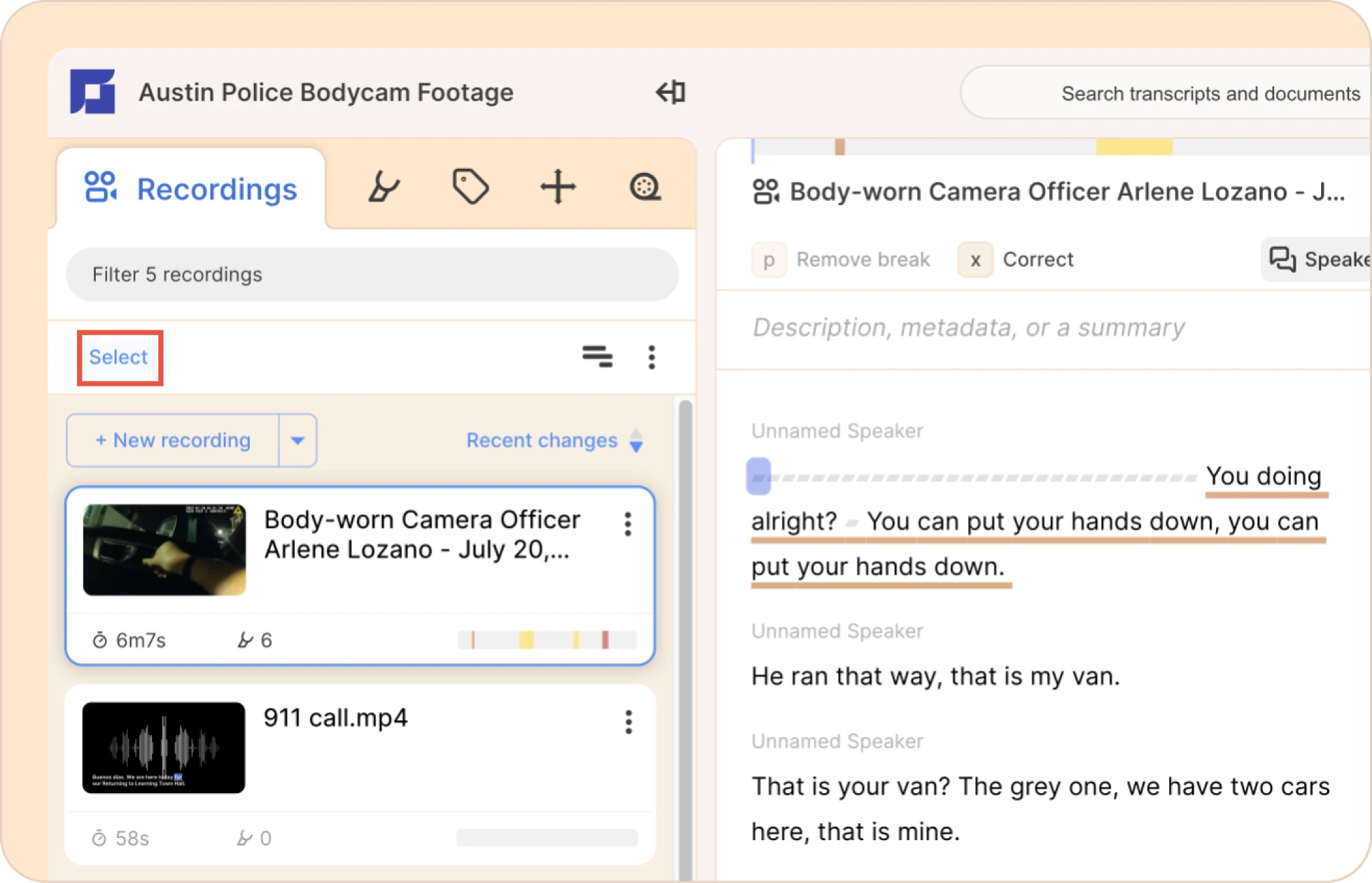
First, click the Select button on top of the new recording button.
-
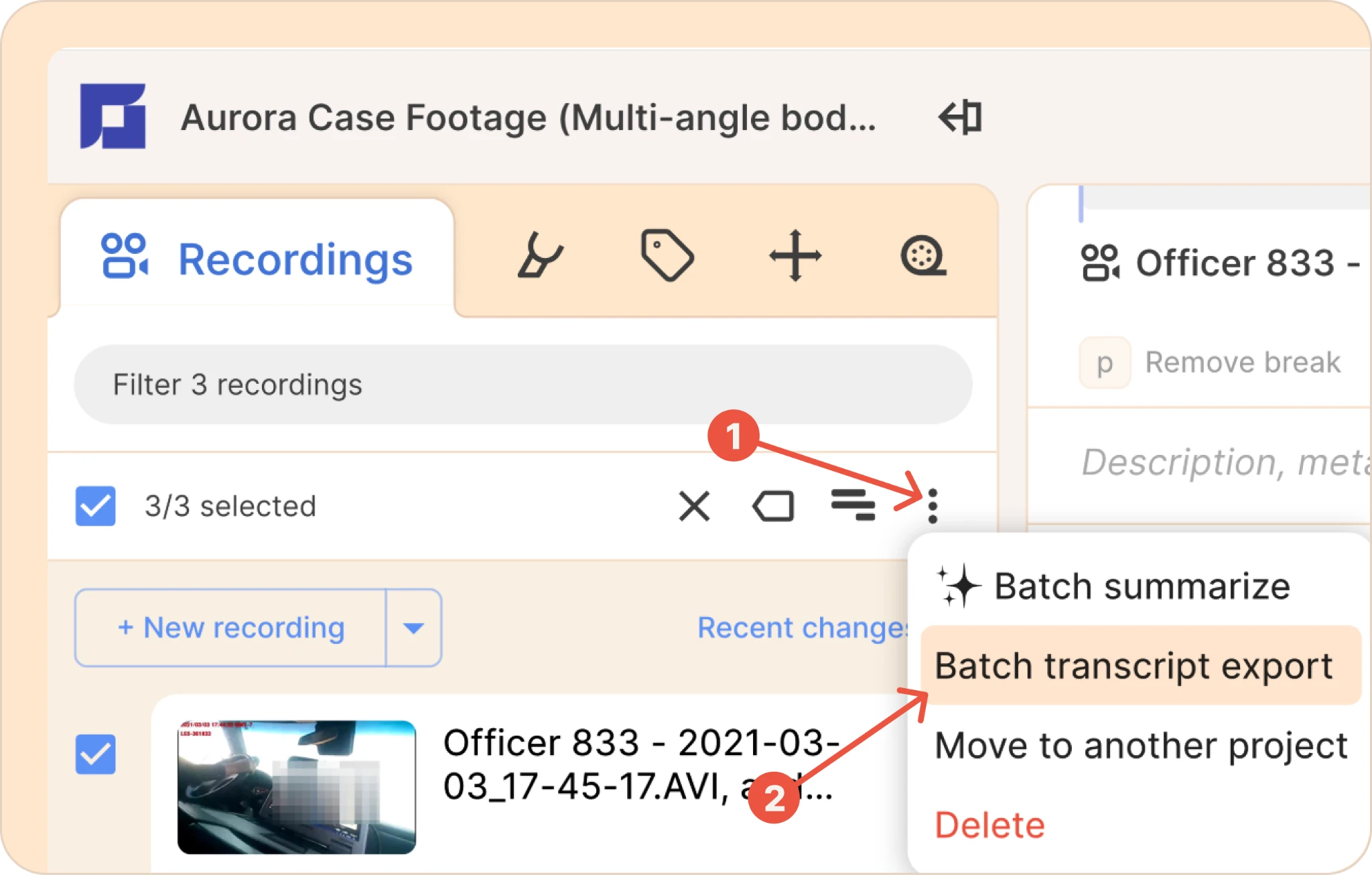
Next, select all the recordings you’d like to export. Then click on the three-dot kebab (︙) menu. And select Batch transcript export option.
-
Choose the format in which you would like to export your transcripts.
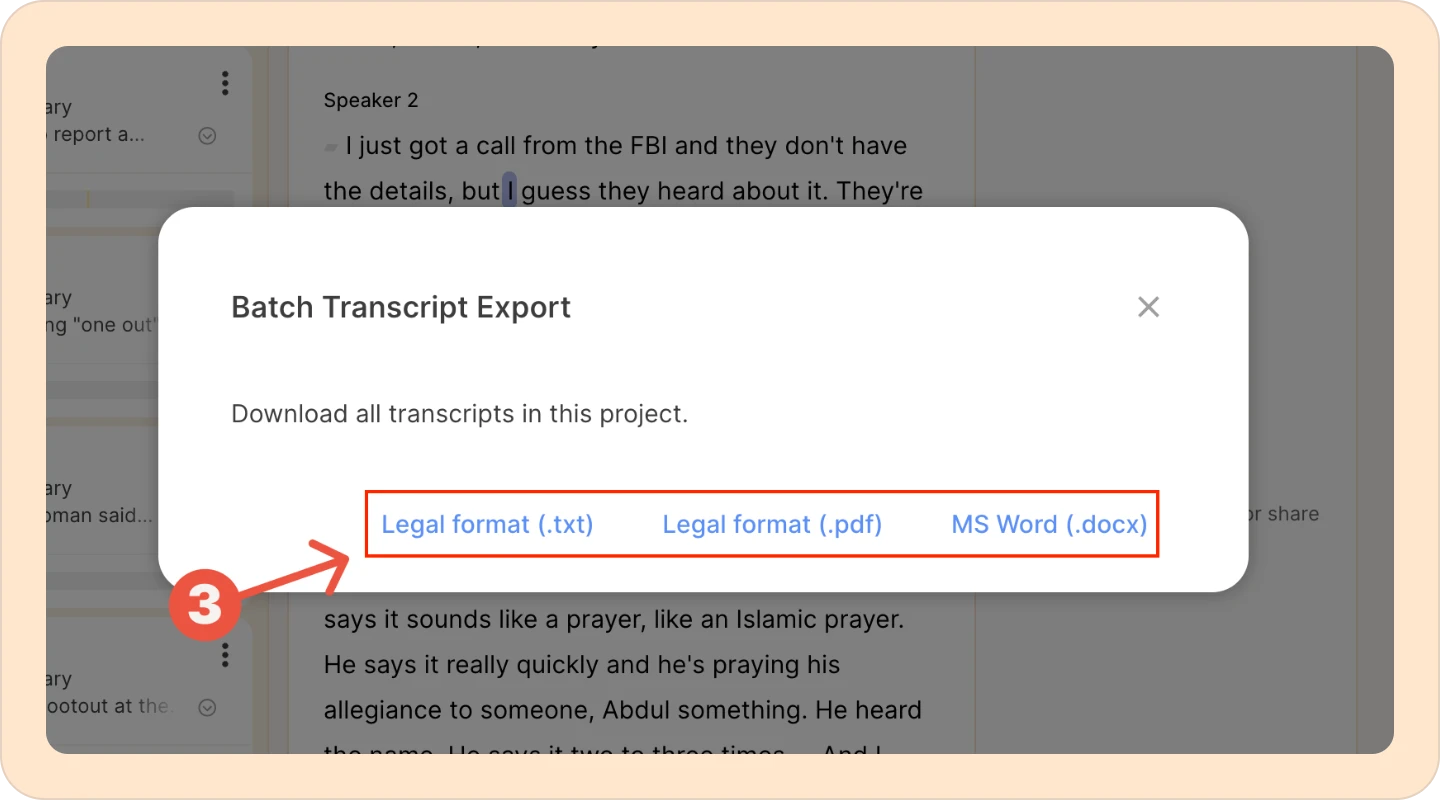
The available export formats are:
For all Reduct users:
- MS Word (.docx): Exports each transcript as an editable Word document so you can revise, annotate, or reformat as needed.
For professional and enterprise users only:
- Legal format (.txt): Exports a plain-text transcript formatted to meet standard court system specifications, with optional line numbers, timestamps, and cover page.
- Legal format (.pdf): Exports a print-ready PDF transcript formatted to meet standard court system specifications.
Reduct will then download a ZIP file containing transcripts from that project to your device.