

Inviting vs Sharing in Reduct
Reduct offers two ways to give others access to your content: Inviting and Sharing. They may look similar, but they are designed for different use cases.
This article explains what each option does and how you can share or invite others in Reduct.
Inviting
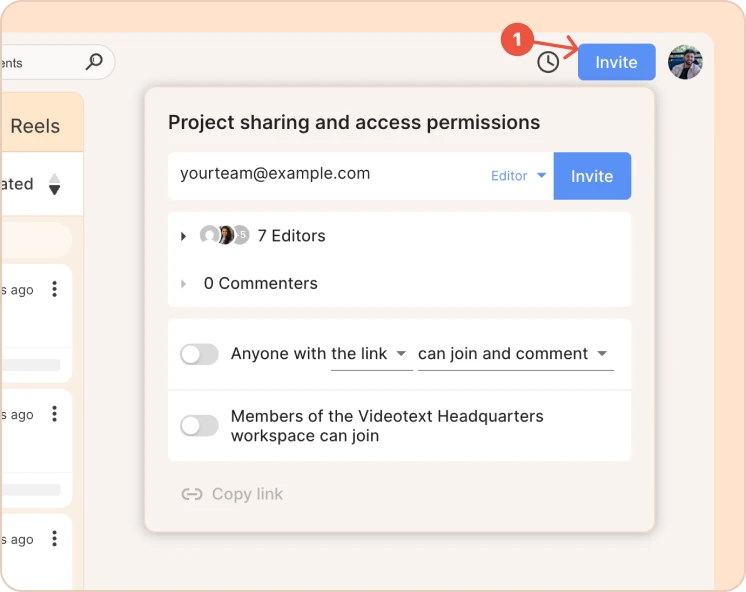
Inviting is for collaboration inside Reduct. If you want your project to remain private within your team, invite team members directly to the project and keep Anyone with the link turned off.
When this setting is off, access is restricted to invited users only. The project cannot be accessed without an invitation.
When you invite someone:
- They must have a Reduct account (or create one).
- They must log in to access the content you shared with them.
- Only invited users can see the content.
Invited users become part of your workspace or project and can interact with content based on their permission level.
Learn more about different permission level in Reduct ->
Activity tracking
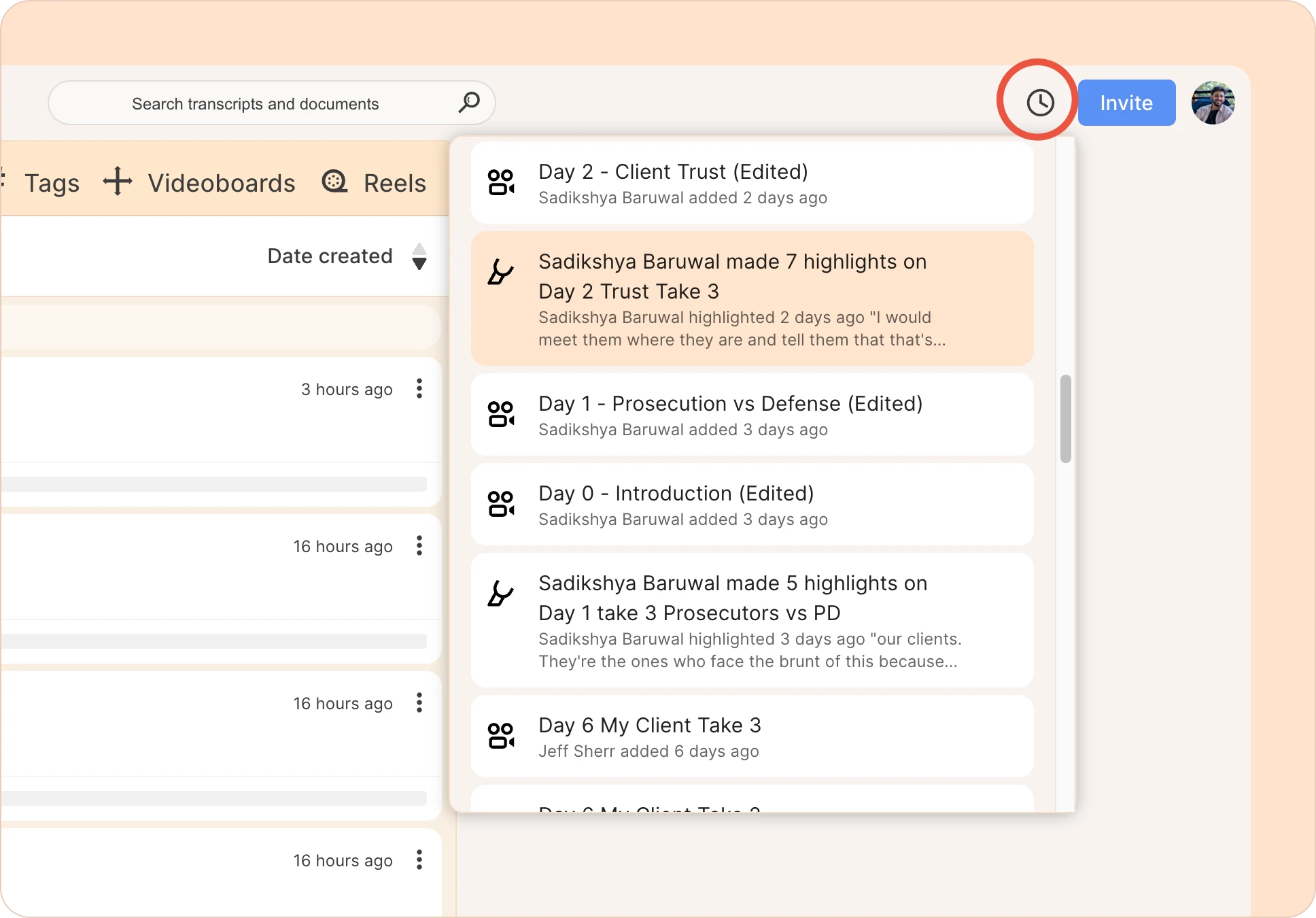
All actions taken by invited users are logged. You can see:
- Who made a change
- What was changed
- When it happened
This information is available in the Activity Center (the clock icon) on the top right corner of the app.
Sharing
Sharing is for external access. When you share content from Reduct:
- The viewer does not need a Reduct account.
- No login or Reduct license is required.
- Shared content can either be view-only or view and comment.
Ways to share in Reduct
-
Publish a Reel
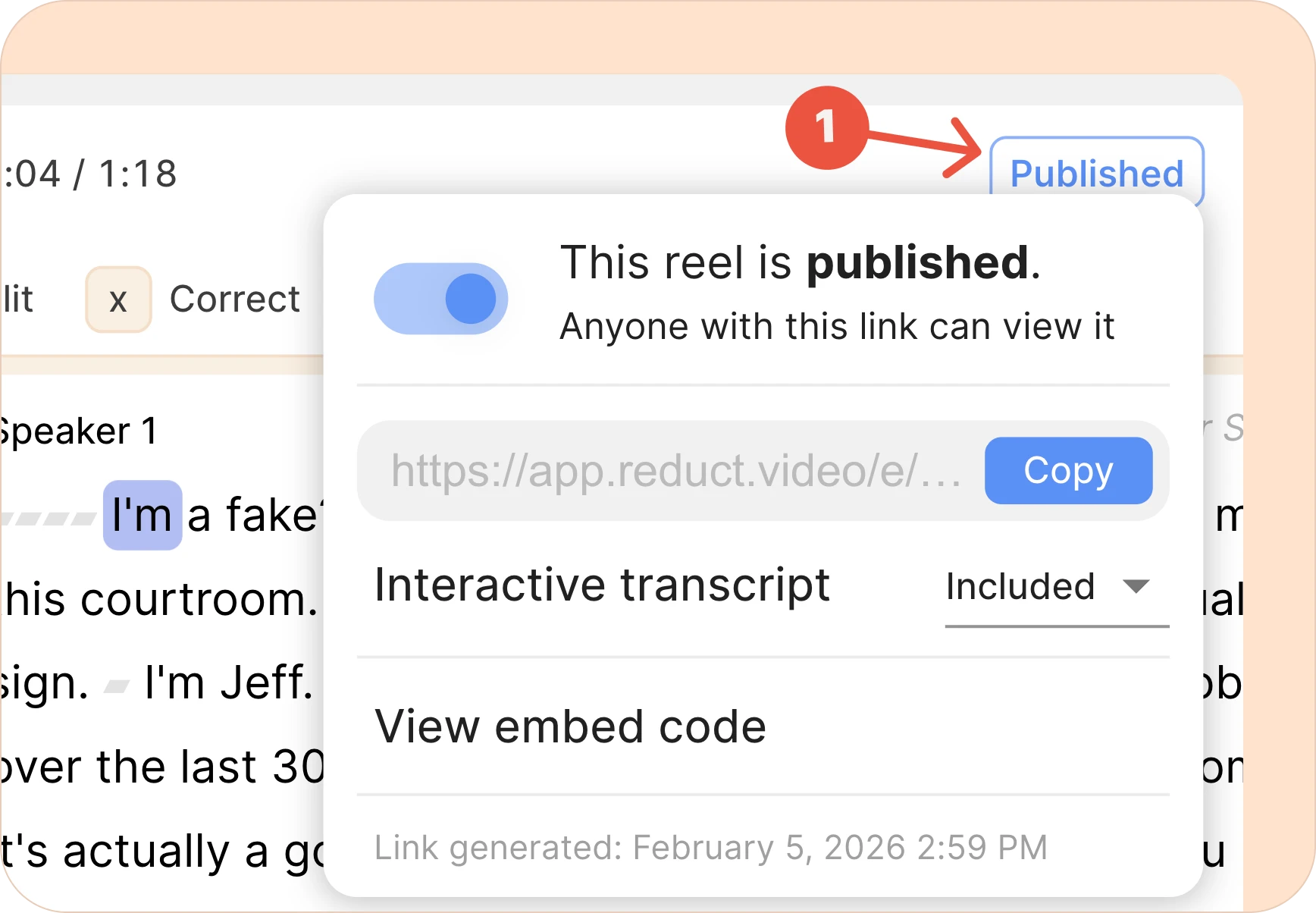
A Reel can be published as a shareable link.
- Anyone with the link can view.
- The shared reel becomes public. Note that these links include a secure token in the URL, so only those who have access to the URL can see it.
-
Share a Project (Anyone with the link can view)
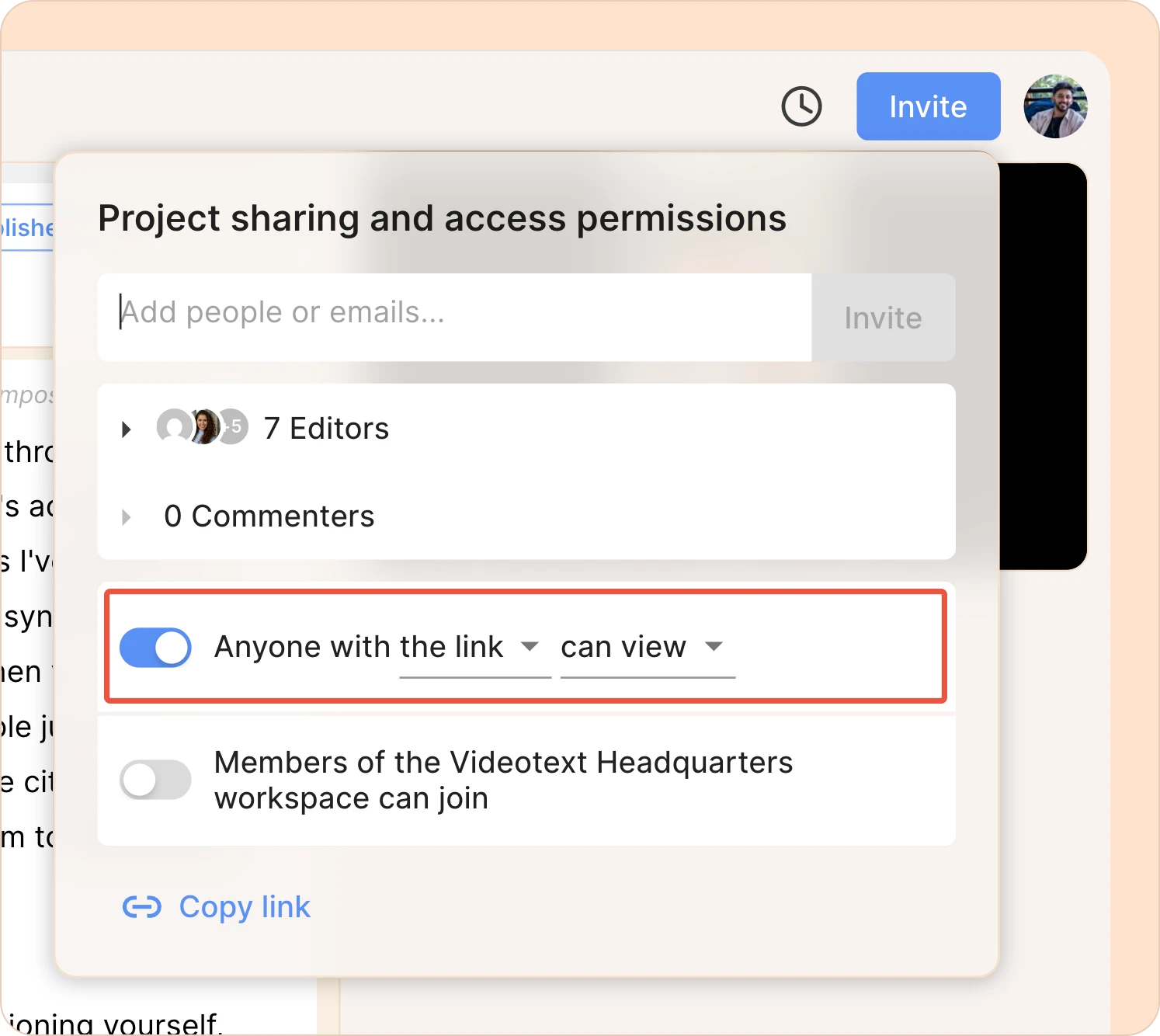
You can share an entire project by setting it to Anyone with the link can view.
- No login is required to access the content.
- Viewers with the link can optionally leave comments, if enabled (after a sign in).