

Advanced filters
Most lists in Reduct — Recordings, Documents, Reels, Videoboards, and Highlights — have a filter field at the top. You can use it in two ways:
-
Type any text to match items by name, and where available, description.
-
Type a filter prefix (like label: or duration: ) to filter by metadata such as who uploaded an item, how long it is, when it was recorded, and more.
You don't need to memorize the syntax. Click the filter field and choose See advanced filter options to browse everything available for that list, then pick a prefix to see its options or examples.
The basics
Filter by text
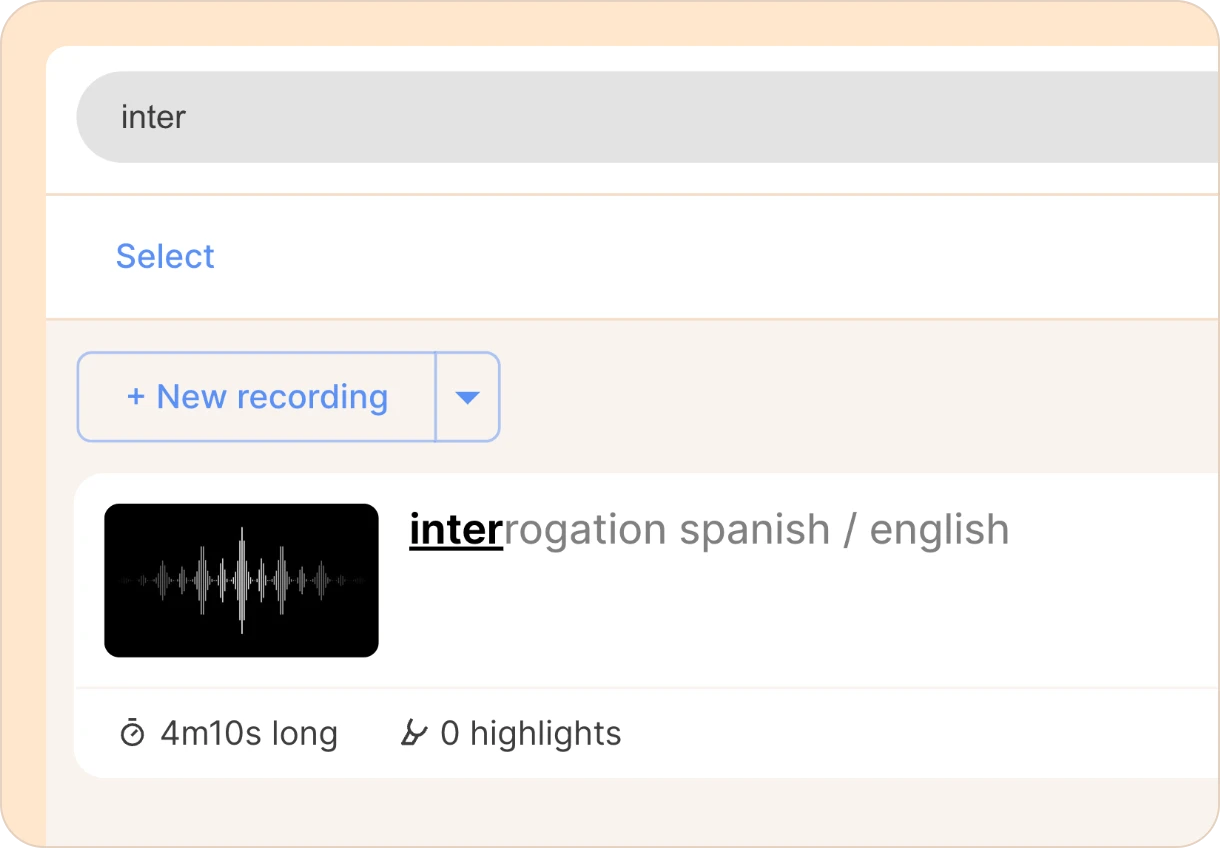
Just start typing. Anything without a prefix matches the item's name or description (a case-insensitive substring match). For example, typing interrogation on the Recordings list shows every recording with "interrogation" in its title or description.
Filter by metadata
Type a prefix followed by a colon and a value, for example:
- label:onboarding
- duration:>10min
- uploaded:2026-01-15
- language:Spanish
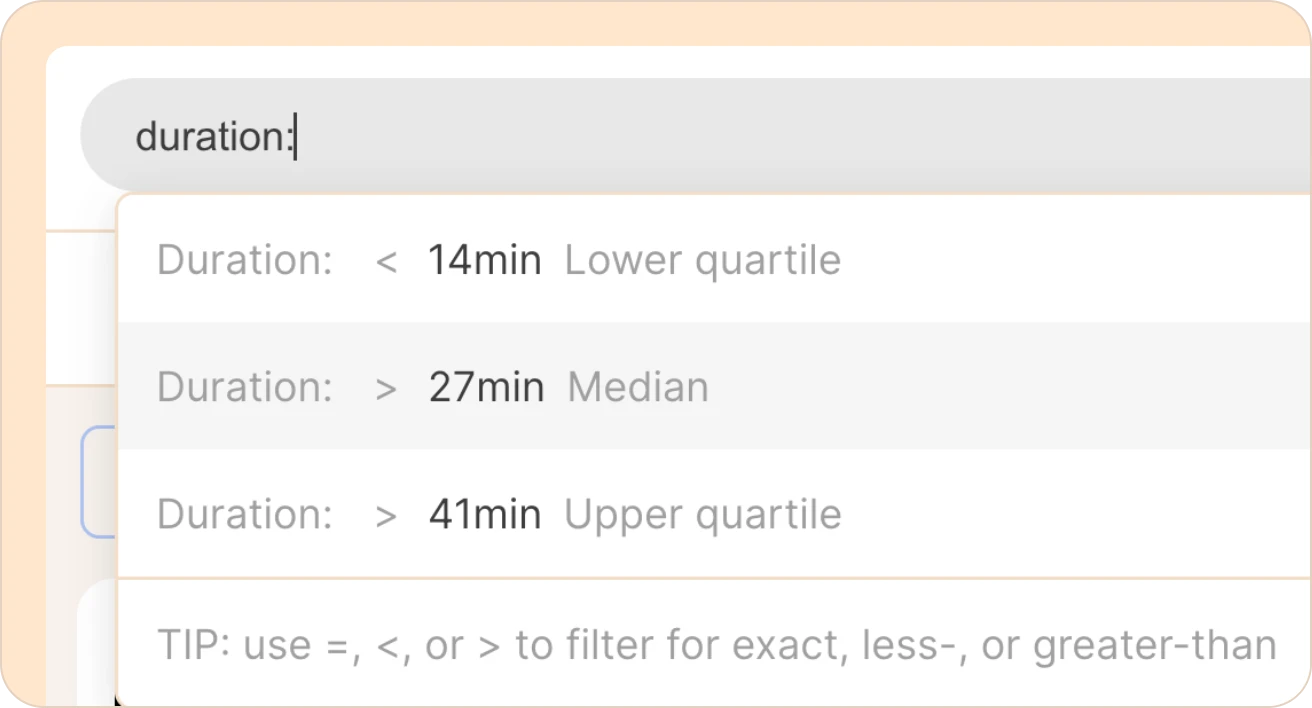
When you finish typing a prefix followed by a colon, a dropdown suggests values drawn from the items actually in your list, so you can pick rather than type, or match the syntax for your own custom filtering.
Combining filters
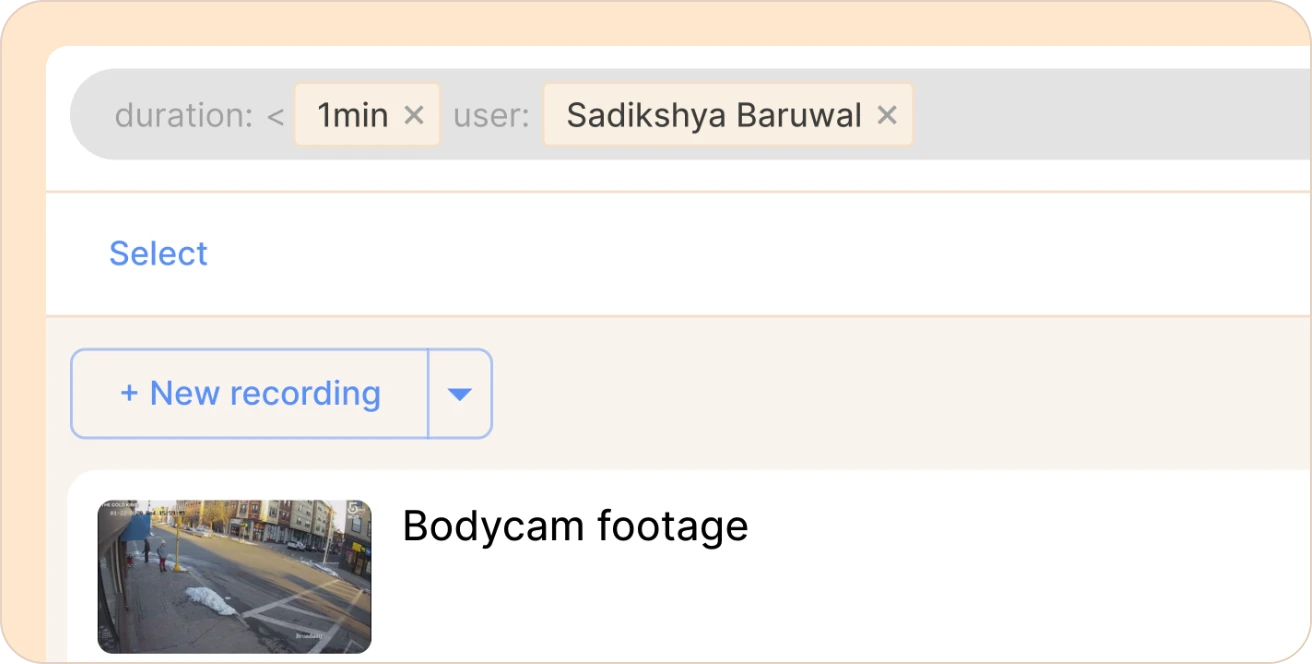
You can stack as many filters as you like. Each one you commit becomes a chip in the filter field.
-
Different prefixes are combined with AND. For example, type:document used:yes shows highlights that are from documents and are used in a reel.
-
Repeating the same prefix combines with OR. Adding label:onboarding and label:demo shows items with either label.
-
Currently, you cannot combine multiple labels (for example) with AND, but this is on our roadmap.
Editing and removing filters
-
Press ENTER to commit what you've typed as a chip.
-
Press BACKSPACE or ← (LEFT ARROW) to turn a chip back into editable text; press ENTER to re-commit it.
-
Press ESC to close the dropdown.
Value syntax reference
Some prefixes take a plain value (a label, a user, a language). Others accept comparisons or dates. Here's how those work:
Numbers (duration, highlights, pages, items, proportion)
Numeric filters accept a comparison operator:
| Operator | Meaning | Example |
|---|---|---|
| > | greater than | highlights:>10 |
| < | less than | pages:<5 |
| = | (about) equal to | duration:=10min |
If you don’t type an operator, > (greater than) is assumed. So highlights:10 is the same as highlights:>10.
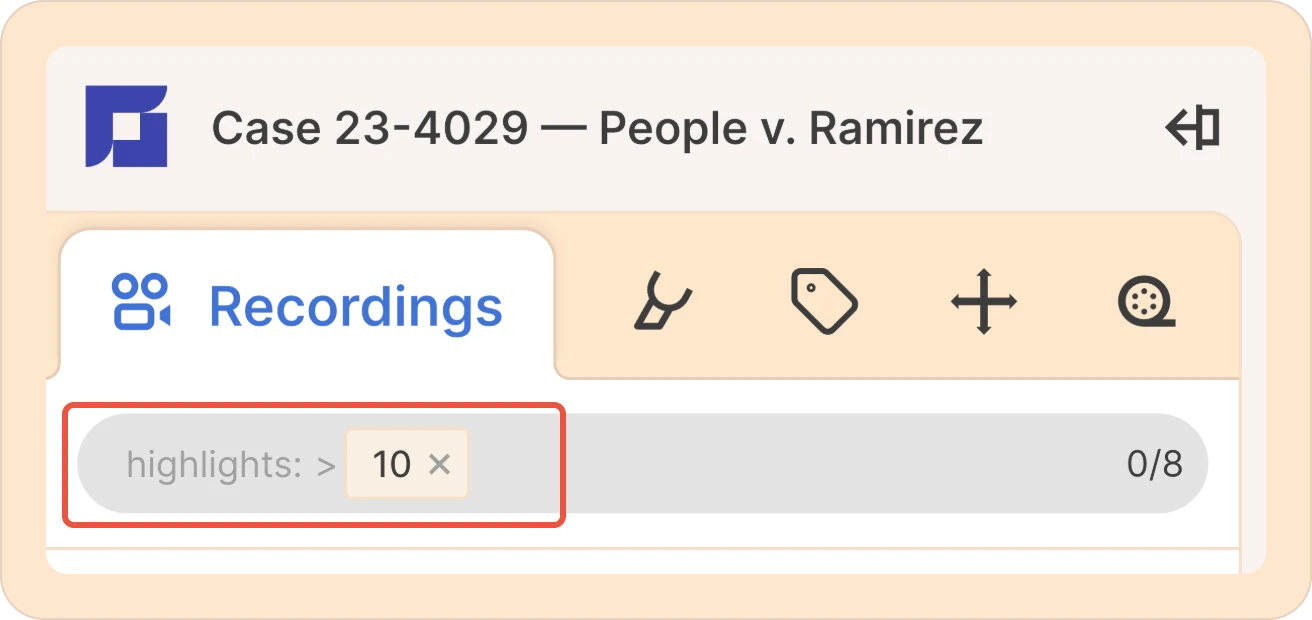
The operator is always shown, greyed out, in the committed chip — so you can see the default that was applied.
= is slightly fuzzy for durations and proportions, so duration:10min matches a recording that's 10m04s.
Durations
Durations accept s , min , and hr (and their long forms sec / second , minute and hour). If you don't specify a unit, minutes are assumed.
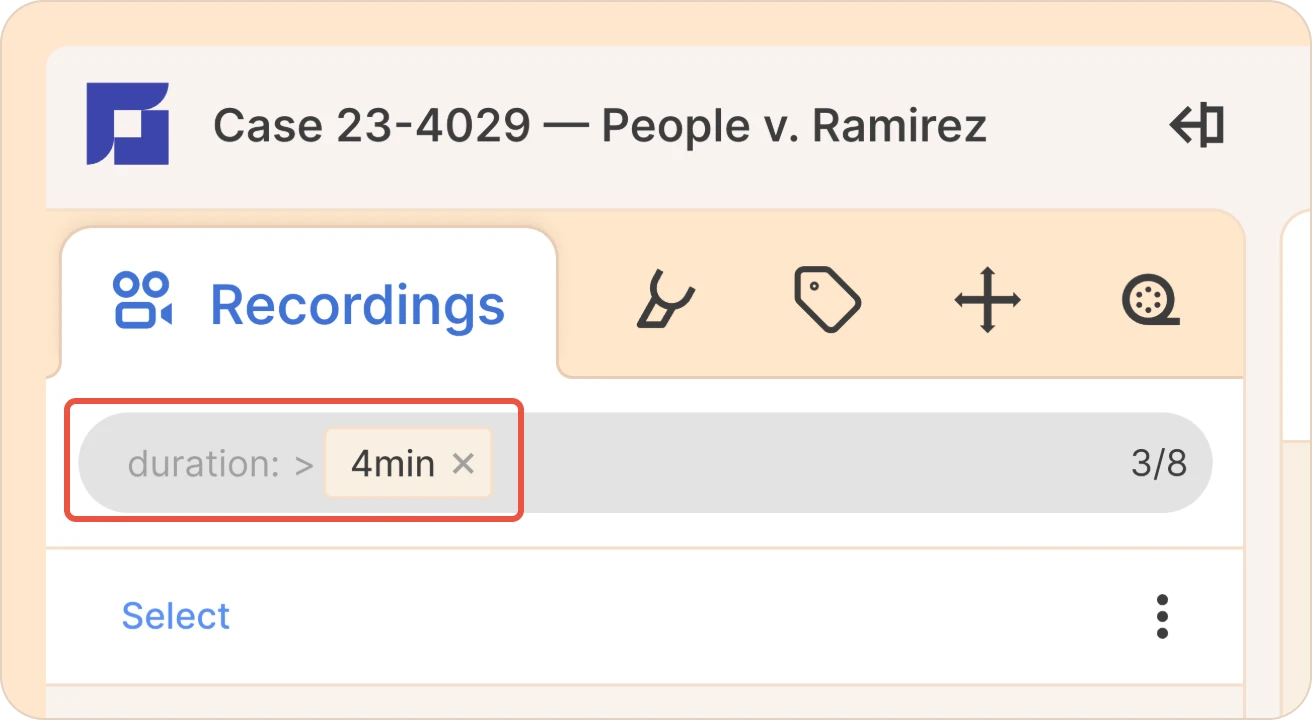
These are all equivalent:
- duration:>10min
- duration:10minute
- duration:10
Other examples: duration:<30s, duration:>1.5hr
Proportions
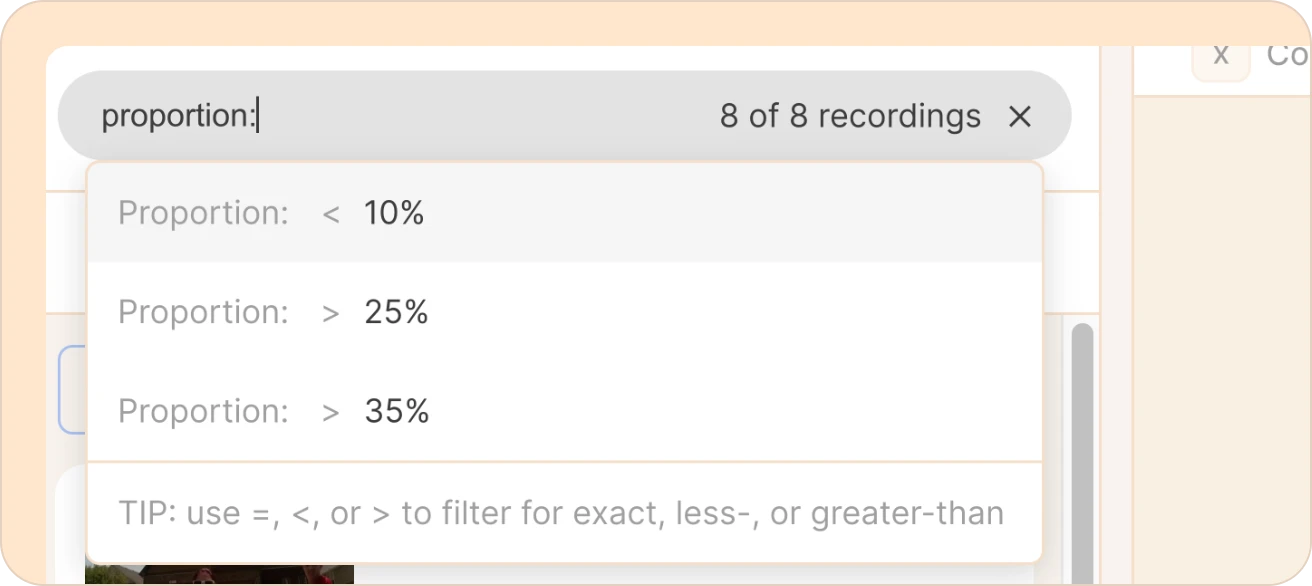
This option will allow you to filter by the proportion of the recording’s duration that has been highlighted. You can type a percentage or a fraction, with or without the % sign:
- proportion:>50%
- proportion:50
- proportion:0.5
A value greater than 1 (or one with %) is read as a percentage; 0.5 is read as a fraction.
Dates (uploaded, recorded, date)
Date filters accept two forms:
- An exact calendar day, written YYYY-MM-DD. For example, uploaded:2026-01-15 matches items uploaded on that day.
- A relative window, written as a number and a unit, matches everything within the last N of that unit. Units: hr , day , wk , mo , yr (and long forms).
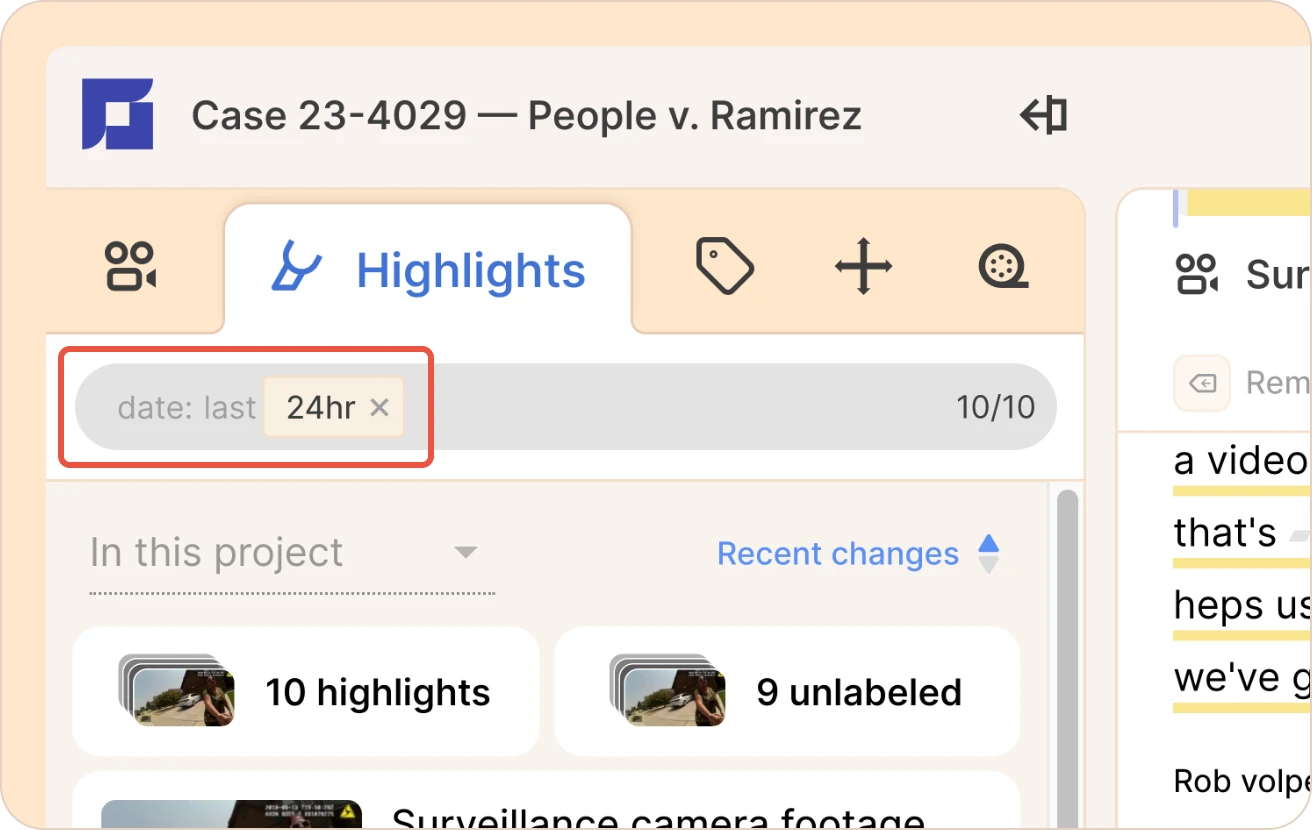
For example:
- Uploaded:1wk — (items from the last week)
- Recorded:6mo — (items from the last six months)
- Date:4days — (highlights created in the last four days)
Languages
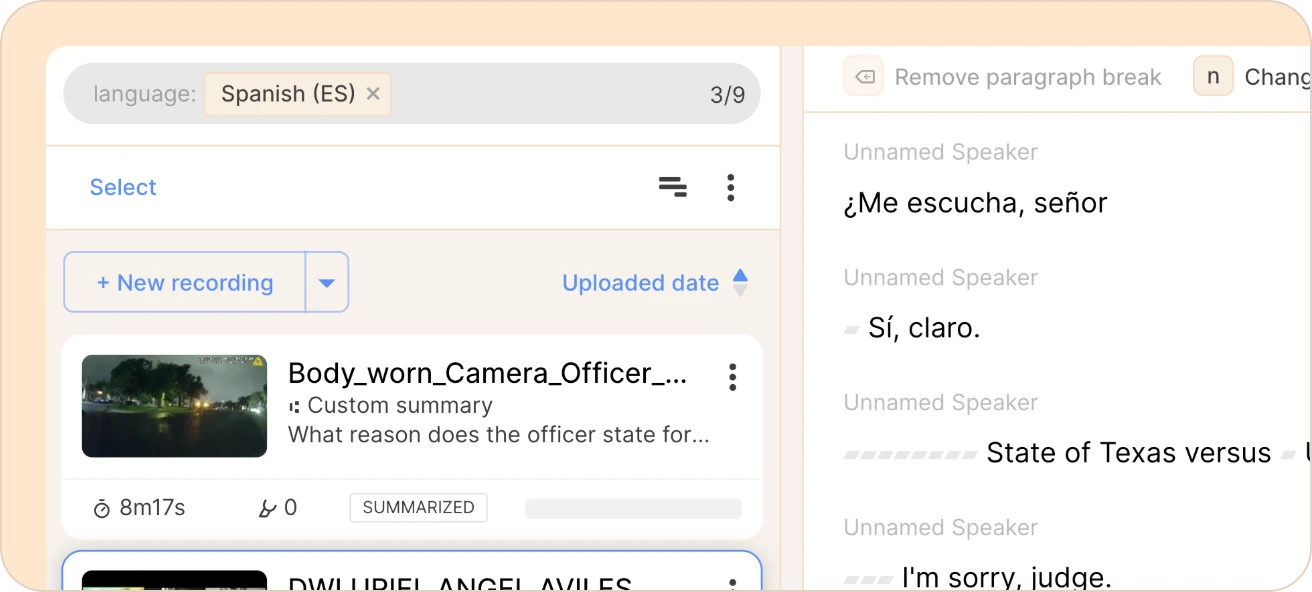
Language filters accept either a language code or a language name, and they're case-insensitive:
- language:en
- language:English
- lang:es
- Lang:spanish
lang: is a shorthand alias for language:. Names match on a prefix, so lang:span also finds Spanish. An item is matched if any of its languages match — useful for multi-language recordings.
Colors: (color, source-color)
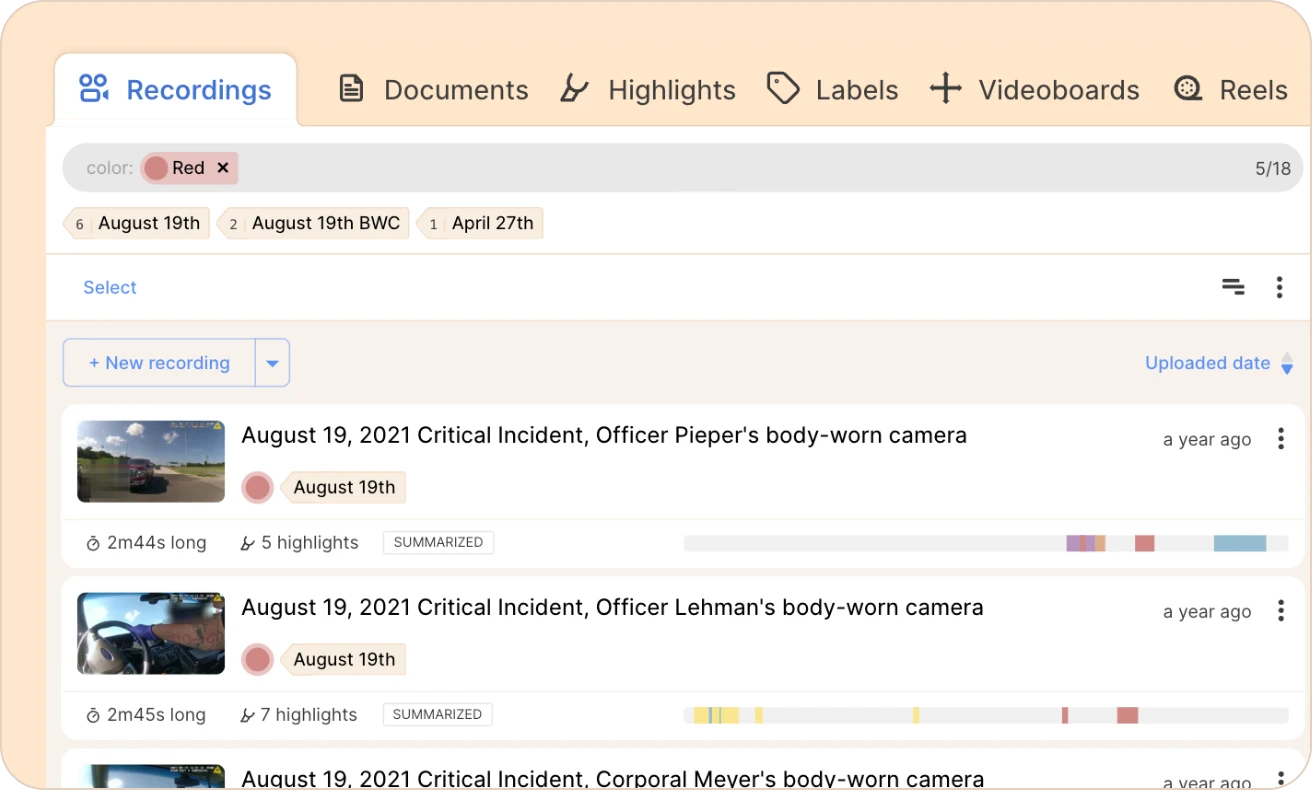
You can add different colors to a recording or a highlight in Reduct. And you filter down recordings or highlights by using the color prefix. For example:
- color:red
- color:yellow
When you type the prefix color: the dropdown lists the colors actually in use in that list, so you can pick rather than type. You can also combine a color with a label to narrow your search:
For example, color:green label:interview, finds recordings that are both green and labeled “interview.”
Yes / no (published, used, comment)
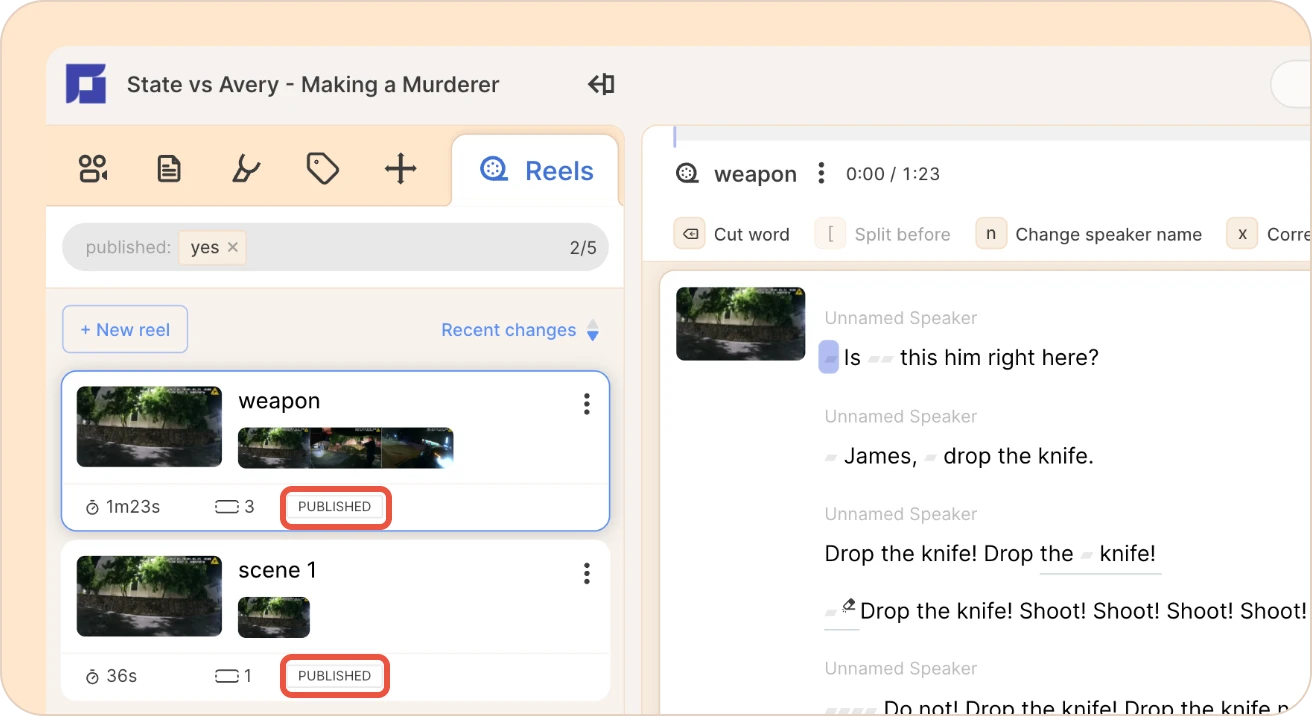
The following filters accept yes or no:
- published: For filtering reels — shows you only published or unpublished reels
- used: For filtering highlights — shows you the highlights included (or not included) in any reels
- comment: Available in the highlights tab — shows only the highlights with or without comments)
What you can filter, by list
Recordings
| Prefix | Filters by |
|---|---|
| label: | Recordings with a given label |
| contains: | Contains a highlight, comment, description, or summary |
| user: | Who uploaded the recording |
| uploaded: | Upload date |
| recorded: | Recorded date |
| duration: | Length of the recording |
| proportion: | Proportion of the recording that's highlighted |
| highlights: | Number of highlights |
| language: / lang: | Language of the recording |
| color: | Has a specific color label |
Documents
| Prefix | Filters by |
|---|---|
| label: | Documents with a given label |
| contains: | Contains a highlight, comment, description, or summary |
| user: | Who uploaded the document |
| uploaded: | Upload date |
| pages: | Number of pages |
| highlights: | Number of highlights |
| color: | Has a specific color label |
Reels
| Prefix | Filters by |
|---|---|
| user: | Who created the reel |
| uploaded: | Created date |
| duration: | Length of the reel |
| items: | Number of items in the reel |
| contains: | Contains a highlight, title, or comment |
| published: | Whether the reel is published (yes / no) |
| language: / lang: | Language of the reel |
Videoboards
| Prefix | Filters by |
|---|---|
| includes: | Includes a recording, highlight, label, note, or framework |
Highlights
| Prefix | Filters by |
|---|---|
| label: | Highlights with a given label |
| used: | Whether the highlight is used in a reel (yes / no) |
| comment: | Whether the highlight has a comment (yes / no) |
| type: | Whether the source is a recording or a document |
| source: | A specific source recording or document |
| user: | Who created the highlight |
| date: | Date the highlight was created |
| uploaded: | Upload date of the source |
| recorded: | Recorded date of the source |
| duration: | Length of the highlight |
| language: / lang: | Language of the highlighted section |
| color: | Has a specific color label. |
| source-label: | A label on the highlight’s source |
| source-color: | A color on the highlight’s source |
Quick tips
-
Not sure what's available? Click the empty filter field and choose See advanced filter options to browse every prefix for that list, then pick one to see its values.
-
Committed filters are editable. If you use the ← (left arrow) or BACKSPACE keys the “chip” will turn into editable text; enter will re-commit them.
-
Presets are drawn from your data. For numbers and dates, the dropdown suggests thresholds based on what's actually in the list (for example, >16min or last 1wk), so the suggestions are always relevant.
-
The greyed parts of a chip are meaningful. The prefix, the default >/</= operator, and the last on relative dates are all shown in grey to signal they carry special meaning.